Hypno 2 Manual

User manual for the Sleepy Circuits Hypno 2 Hardware Video Synthesizer

Quick Start

  1. Connect the USB-C Power Input

  2. Use the 3 knobs to control parameters

  3. Use the 3 buttons for channel selection

  4. Tap the screen for explore options

Controls

Hypno 2 has two different control modes depending on whether you're using the main video synthesizer application or desktop mode.

Hardware Overview

  • 3 Pushable Encoders: Rotary encoders that can be turned and pressed

  • 3 Keyboard Buttons: Dedicated buttons for navigation and channel selection

  • Touch Interface: 800×480 touchscreen for menu navigation

Main Application Mode (Video Synthesizer)

Channel Selection: Use buttons to switch between channels

Encoders

  • Left Encoder (Encoder 0): Controls leftmost parameters and UI elements

  • Center Encoder (Encoder 1): Controls center parameters and UI elements

  • Right Encoder (Encoder 2): Controls rightmost parameters and UI elements

  • Spatial Mapping: Each encoder corresponds to its physical position on screen

Interface Navigation

Hypno 2 features a sophisticated touch-optimized interface designed for 800×480 displays with consistent visual language and intuitive navigation.

Screen Modes

Fullscreen Mode (Immersive View)

  • Purpose: Clean output display without UI elements for performance or presentation

  • Access: Touch anywhere on the screen from any mode to toggle

  • Use: Preview your visual creation or for live performance

  • Return: Touch anywhere in fullscreen to return to the control interface

Home Screen (Control Interface)

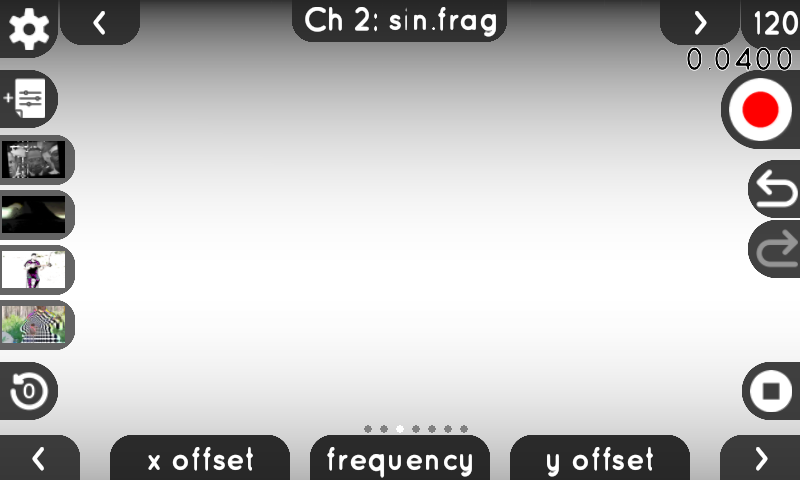
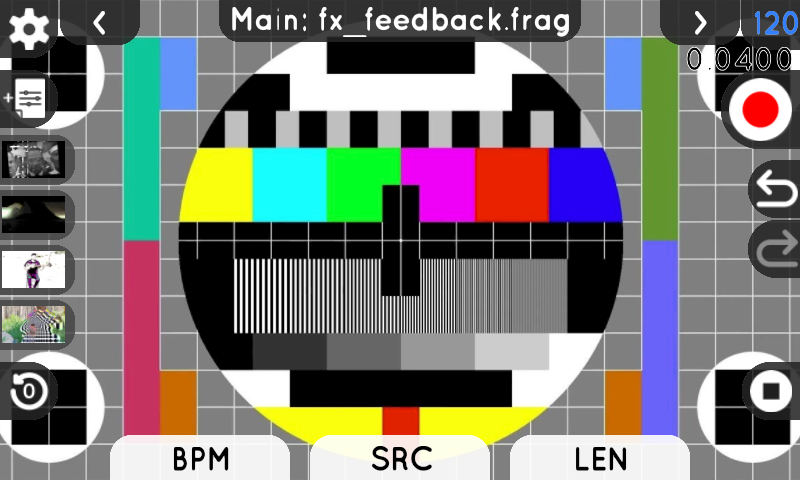
  • Purpose: Main control center for parameters, settings, and navigation

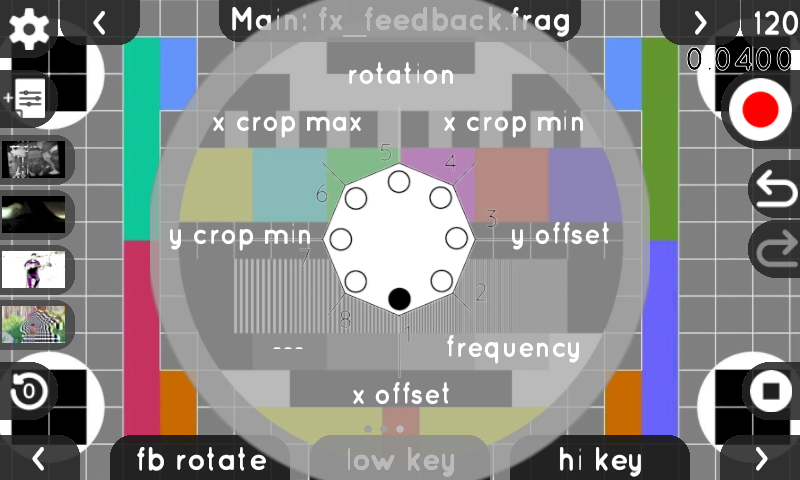
  • Features: Parameter control knobs, transport controls, recording controls, quick access buttons

Visual Design Language

  • Black backgrounds: Touchable buttons and interactive elements

  • White backgrounds: Non-interactive labels and information

  • Blue indicators: Selected or active elements

  • Color inversion: Visual feedback when buttons are pressed

Video Input

Connect UVC video sources via USB for live video processing, a small video camera icon will pop up in the file browser to help you load the camera.

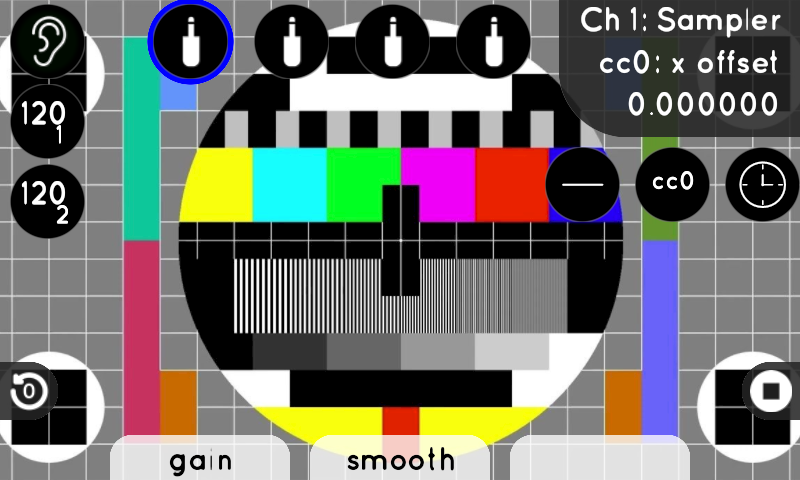
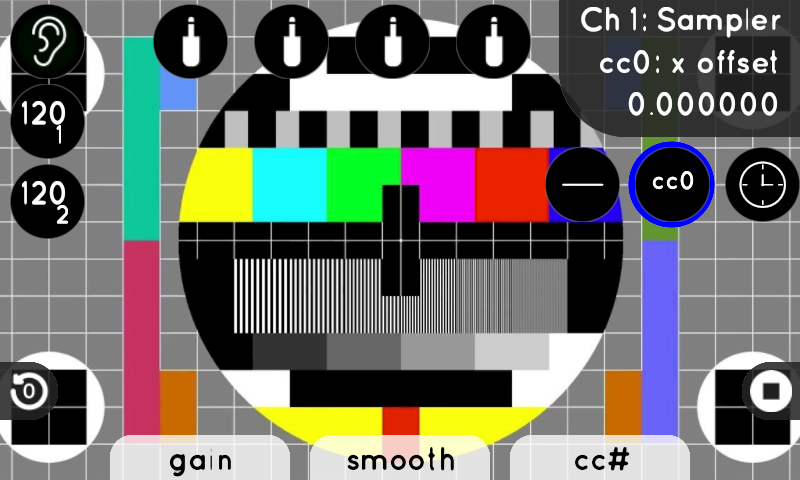
Modulation System

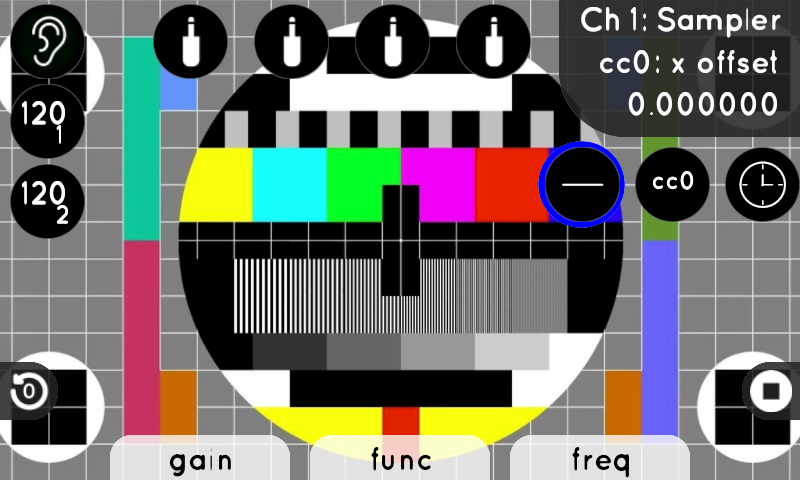
Hypno 2 features advanced parameter modulation capabilities that can animate your visuals automatically. Each knob can be modulated by multiple sources with independent gain control.

Modulation Sources

  • DC Sources: Static modulation values (CV 1 -4)

  • AC Sources: Audio modulation inputs (AUX)

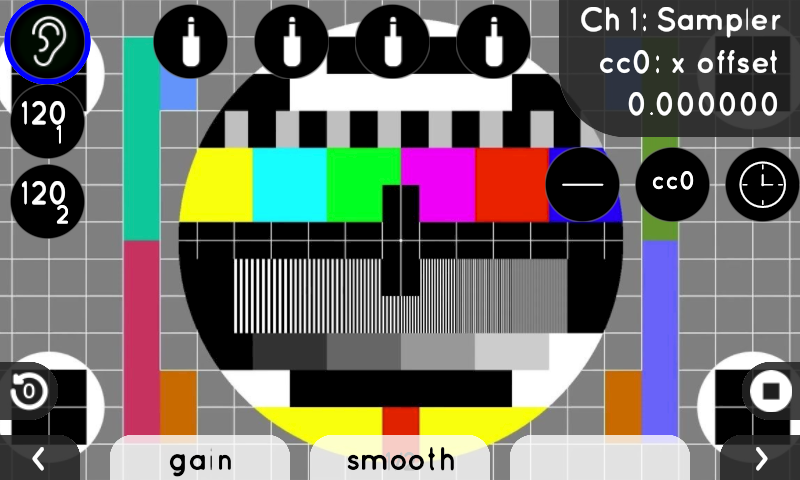
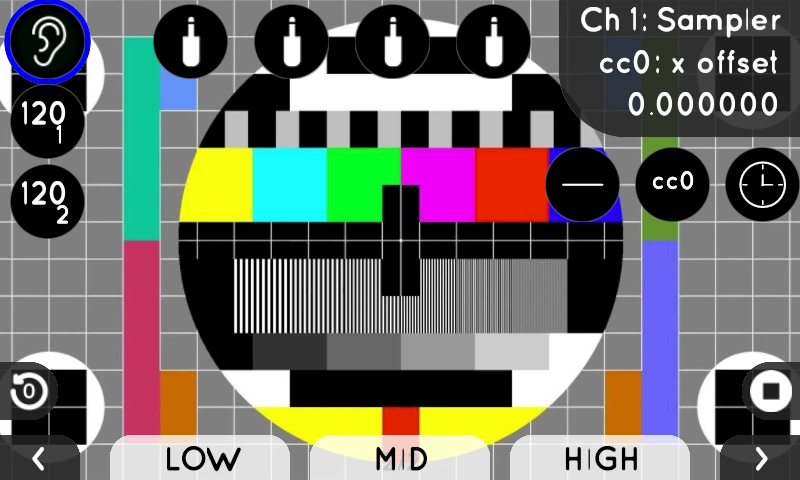
  • Audio Following: Built-in microphone with adjustable magnitude and slew rate

  • BPM Sync: Sync to external clock sources

Modulation Functions

  • Sine Wave: Smooth cyclic modulation

  • Cosine Wave: 90-degree phase shifted sine wave

  • Triangle Wave: Linear up-and-down modulation

  • Ramp Wave: Sawtooth-style linear modulation

  • Tangent Wave: Exponential-style periodic modulation

  • Smooth Random: Natural organic modulation using Perlin noise

  • Pulse Wave: Square wave with 50% duty cycle for strobe effects

  • Exponential: Fast rise curve for crescendo effects

  • Logarithmic: Fast attack, slow decay for natural decay

  • Stepped Random: Sample & hold random values (16 steps per cycle)

  • Bounce: Bouncing ball physics with 4 bounces per cycle

  • Chaos: Lorenz attractor chaotic system for unpredictable patterns

  • Heartbeat: Double-peak biological rhythm pattern

  • Pendulum: Physics-based pendulum motion with non-linear timing

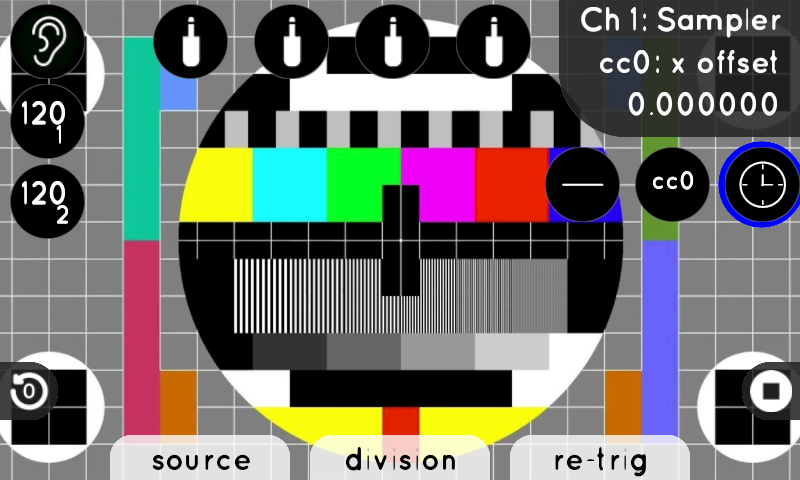
BPM Sync Features

When BPM sync is enabled, modulation can lock to external clock sources:

Division Options: 1/32, 1/16, 1/8, 1/4, 1/2, 1/1, 2x, 4x, 8x, 16x Sync Sources: Two independent trigger inputs

Audio Following

The built-in microphone can modulate parameters with adjustable:

  • Magnitude: Sensitivity to audio input (bipolar -1 to +1)

  • Slew Rate: Smoothness of audio response (0 to 1)

Undo/Redo System

Hypno 2 includes a comprehensive undo/redo system that allows you to revert mistakes, explore different creative directions, and recover from unwanted changes.

Accessing Undo/Redo

  • Undo Button (↶): Reverts the last action - appears bright when available, dimmed when unavailable

  • Redo Button (↷): Re-applies an undone action - appears bright when available, dimmed when unavailable

Simply tap the touchscreen button to undo or redo your most recent action.

What Can Be Undone

The system tracks up to 100 actions including:

  • Parameter Changes: Knob adjustments via hardware encoders or MIDI

  • Modulation Settings: Changes to modulation phase, amplitude, and wave shape

  • Preset Loads: Switch back to previous presets with full state restoration

  • Shader Changes: Revert shader selections (both regular and FX shaders)

  • Resource Switches: Undo video/image file assignments made via file browser or arrow navigation

  • Playback Mode Changes: Revert Loop/One-Shot/Bounce mode changes

Settings Menu

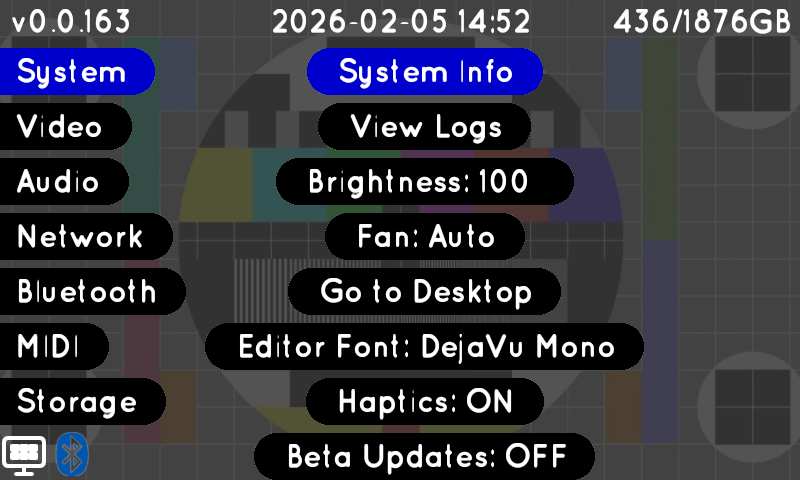
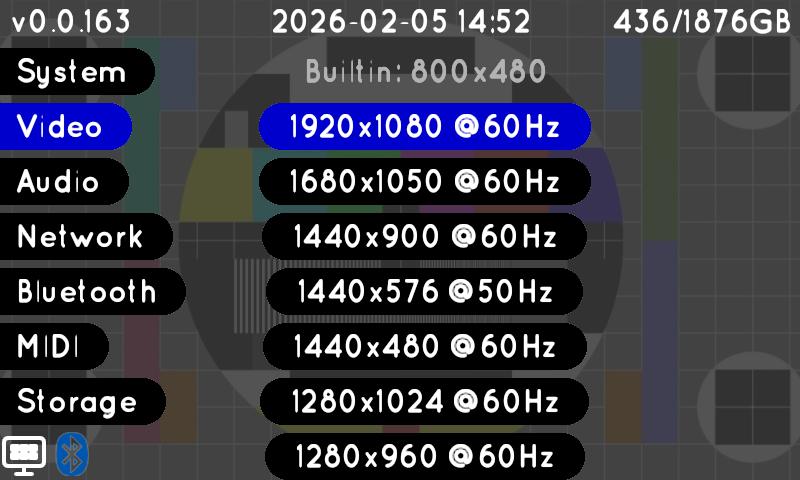
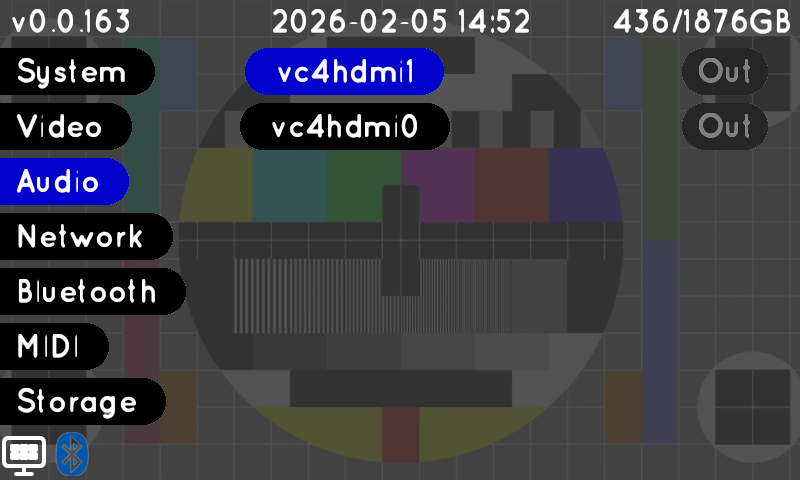
Access the settings menu through the gear icon in the main interface. The settings are organized into system controls and network connectivity options.

System Controls

  • System Information: View current firmware version, hardware details, and system statistics

  • Go to Desktop: Switch to Raspberry Pi desktop mode for system administration

  • Screen Brightness: Adjust display brightness with + and - buttons for optimal viewing

  • Fan Control: Enable or disable the cooling fan (useful for silent operation)

  • Factory Content: Download official content packs and resources

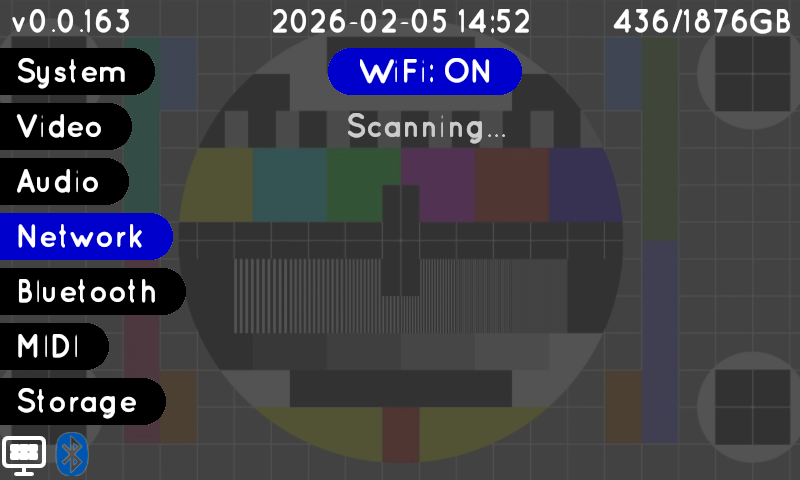
Network & Connectivity

Wi-Fi Management

  • Wi-Fi Enable/Disable: Toggle wireless connectivity

  • Network Selection: Browse and connect to available wireless networks

  • Signal Strength: Visual indicators show connection quality

  • Connection Status: Real-time status of network connectivity

Bluetooth Control

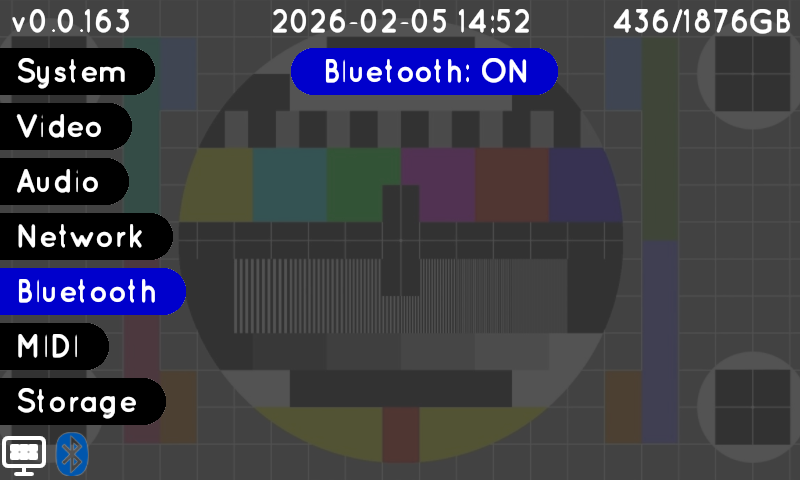
  • Bluetooth Enable/Disable: Toggle Bluetooth functionality for wireless devices

  • Device Pairing: Connect Mezzz and other devices

  • Connection Management: Manage connection status

Supported File Formats

Images

  • Raster Images: JPEG, PNG, BMP, GIF

  • Vector Graphics: SVG (Scalable Vector Graphics)

SVG files provide crisp, scalable graphics that maintain quality at any resolution. The Hypno 2 automatically renders SVG files at optimal quality when loaded into channels, ensuring sharp, pixelation-free visuals perfect for logos, icons, and geometric patterns that can scale from small UI elements to full-screen visuals.

Video Files

  • MP4 (H.264 encoding)

Other Formats

  • Shaders: .frag fragment shader files for custom visual effects

  • Presets: .json complete system state files for patch recall

MIDI Control

Hypno 2 features comprehensive MIDI support for external control, enabling wireless performance setups and integration with existing MIDI workflows.

Supported MIDI Messages

  • Control Change (CC): Continuous parameter control for knobs and sliders

  • Note Messages: Trigger-based control for preset save/recall

  • Channels are Channels - Each MIDI channel represents a Channel of video or the Mixer on CH 1

MIDI Channel
Title
CC Functions

16

Main Out

cc1 - gain 1, cc2 - feedback etc...

1

Channel A

cc1 - X offset, cc2 - frequency etc...

2

Channel B

cc1 - X offset, cc2 - frequency etc...

USB MIDI Controllers

  1. Plug-and-Play: Connect USB MIDI controller to Hypno 2

  2. Automatic Detection: System automatically detects connected devices

  3. Multiple Devices: Support for simultaneous MIDI controllers

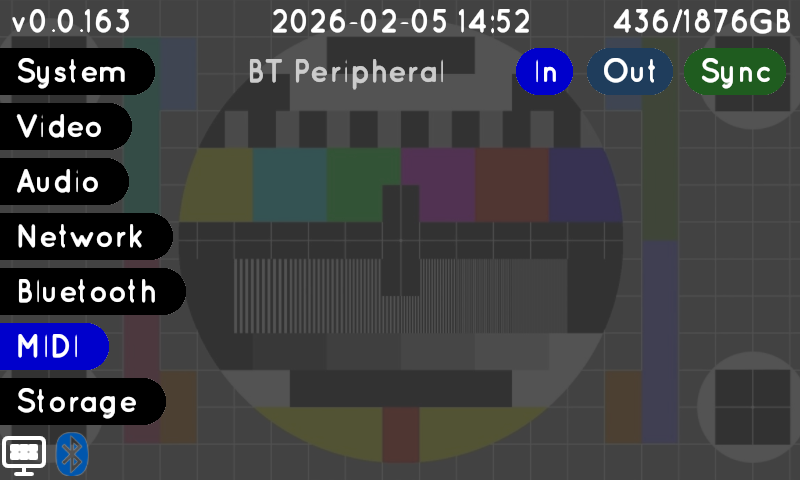
Bluetooth MIDI Controllers

  1. Enable Bluetooth: Access Settings → Bluetooth Control → Enable

  2. Pairing Mode: Put MIDI controller in pairing mode

  3. Devices with MIDI characteristic trigger a popup requseting connection

MIDI Notes

  • Preset Integration: MIDI mappings are saved with presets

  • Mapped presets are saved in the Presets folder under the corresponding note's folder, these can be moved manually to remap

File Management

Hypno 2 features an intuitive file browser with advanced selection and management capabilities for organizing your media files efficiently.

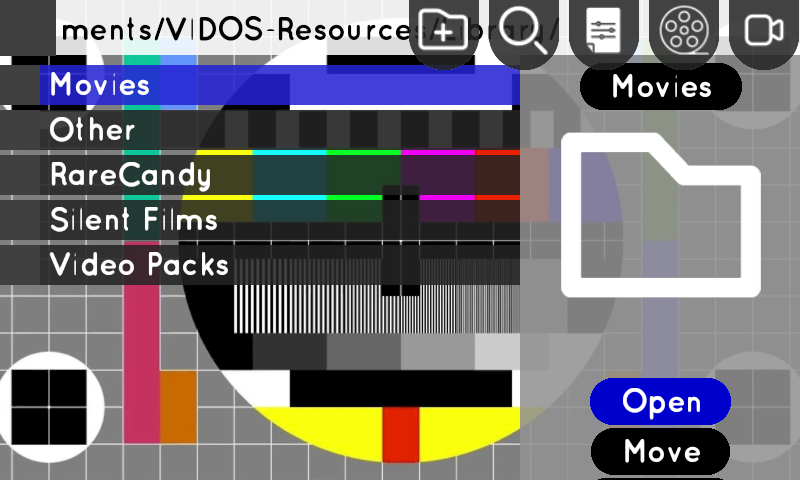
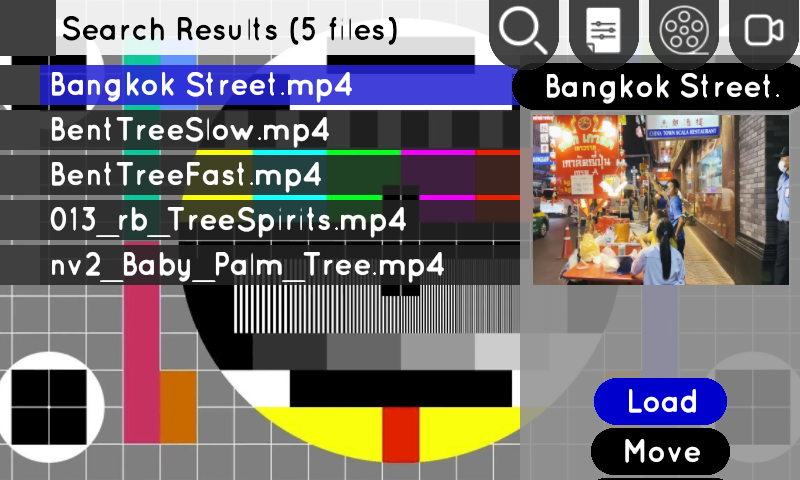
File Browser Interface

The file browser provides a clean, touch-friendly interface for navigating and managing your files:

  • Checkboxes: Every file and folder displays a checkbox for multi-selection

  • Master Checkbox: Located in the browser header, provides quick select all/none functionality

  • Visual Feedback: Selected files show checked boxes (X), unselected files show empty boxes (☐)

  • Spatial Navigation: Use the three hardware encoders to navigate - left encoder for leftmost elements, center for middle elements, right encoder for rightmost elements

  • File Renaming: Touch filename to rename using the virtual keyboard system

Virtual Keyboard System

Hypno 2 includes a comprehensive virtual keyboard for text input and file management:

Keyboard Features

  • Full QWERTY Layout: Complete keyboard with number row, letters, and special characters

  • Shift/Caps Support: Visual feedback for shift and caps lock states

  • Text Cursor: Visual cursor indicator ("|") shows insertion point

  • Cursor Navigation: Left and right arrow keys for precise text positioning

Encoder Integration

  • Encoder Control: Use hardware encoders for precise cursor positioning

  • Clockwise Rotation: Move cursor to the right

  • Counter-clockwise Rotation: Move cursor to the left

  • Touch Positioning: Touch text field directly to position cursor

Text Editing

  • Insert Mode: Type at cursor position for precise text editing

  • Backspace: Delete characters to the left of cursor

  • Confirmation: Press GO button to confirm input and close keyboard

  • Cancel: Press NO button to cancel input and return to previous screen

Multiple File Selection

The checkbox system makes selecting multiple files intuitive and efficient:

Basic Selection

  1. Select Individual Files: Touch the checkbox next to any file to toggle its selection

  2. Select All Files: Touch the master checkbox in the browser header to select all visible files

  3. Clear All Selections: Touch the master checkbox again when files are selected to clear all selections

Video Encoding

When working with video files, Hypno 2 offers flexible encoding options with real-time progress tracking:

Select files with checkboxes, choose quality preset, and monitor real-time progress bars with frame counts.

Video Playback Modes

Hypno 2 provides three distinct playback modes that control how video files loop and repeat within their loop boundaries:

Loop Mode

  • Video continuously loops, jumping back to the loop start point when reaching the loop end

One-Shot Mode

  • Video plays through once from loop start to loop end, then stops on the final frame

Bounce Mode

  • Video plays forward to the loop end, then reverses and plays backward to the loop start, continuously bouncing back and forth

Changing Playback Modes

  • Touch Interface: Press the playback mode button to cycle through modes: Loop → One-Shot → Bounce → Loop

  • Per-Track: Each video channel has its own independent playback mode

USB Drive Management & File Operations

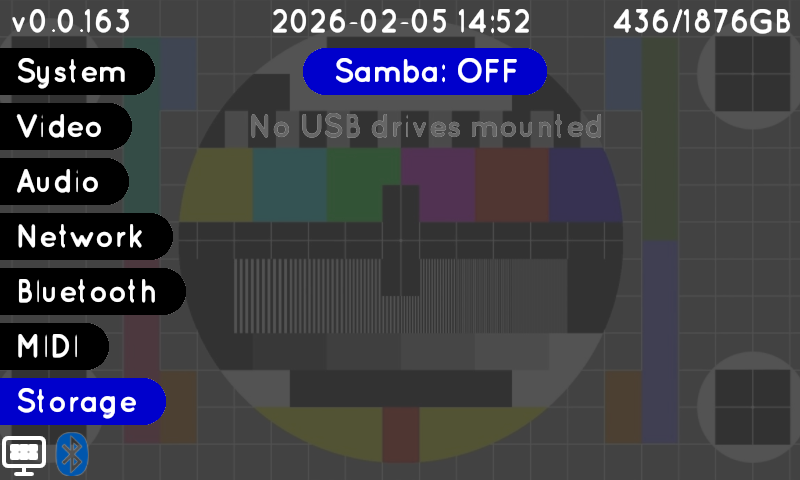
USB drives are automatically mounted when connected, with support for multiple partitions and safe removal. The checkbox selection system enables batch operations:

Available Operations: Move, copy, delete, encode/decode videos Progress Tracking: Real-time progress bars with cancellation support Safety Features: Proper drive unmounting and error handling

Pro Tip: Use the master checkbox to quickly select all files in a directory, then deselect individual files you don't want to include in batch operations.

Recording & Export

Hypno 2 features comprehensive recording capabilities for capturing your visual performances.

Video Recording System

Recording Features

  • High Quality Recording: Full resolution and frame rate capture

  • Automatic Naming: Files automatically named with timestamp for organization

Recording Workflow

  1. Setup Visual: Configure your layers, effects, and parameters as desired

  2. Start Recording: Press the record button (turns red when active)

  3. Perform: Play your visual performance - recording runs in background

  4. Stop Recording: Press record button again to finish recording

  5. Processing: Monitor real-time progress bars during frame processing

  6. Assignment Option: Choose to assign completed recording to active channel (for quick resampling)

  7. File Access: Find recordings in VIDOS-Resources/Recordings/ directory

Batch Processing (+Thought Manager)

  • Select Multiple Files: Encode multiple recordings simultaneously

  • Progress is tracked with glowing top bar + Thought Manager (Brain)

  • Running new batches and single file operations is blocked while batch runs.

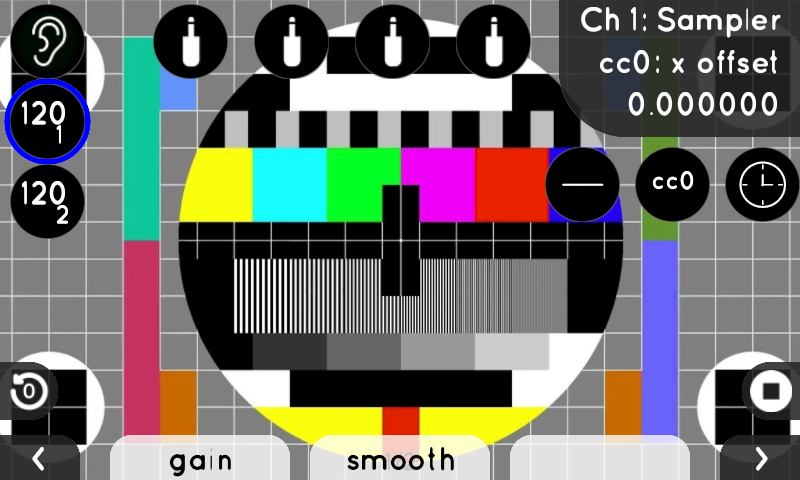
Mod Menu

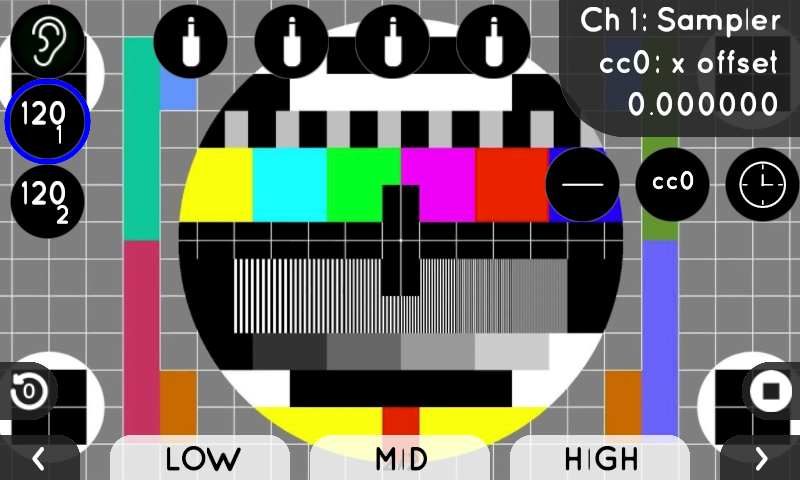
The mod menu displays real-time information about modulation sources and inputs:

  • CV Inputs: Shows the current values of all connected CV inputs with visual indicators on the left side

  • Audio Input: Displays the current audio input level with an ear icon on the left side

  • Trigger Interval BPM: Shows beats per minute readings for each trigger input @ 64ppqn

The trigger interval BPM display converts the frequency of incoming trigger signals into beats per minute, useful for syncing visual content to musical tempo. Each trigger input shows its own BPM readout with a clock icon, positioned vertically along the right edge of the screen for easy visibility.


Desktop Mode (Raspberry Pi Desktop)

When you switch to desktop mode (accessible via Settings → "Go to Desktop"), the hardware controls emulate standard computer input:

Encoders (Desktop Mode)

  • Left Encoder: Mouse X movement

  • Center Encoder: Mouse scroll wheel

  • Right Encoder: Mouse Y movement

Buttons (Desktop Mode)

  • Left Button: ESC key

  • Center Button: SPACE key

  • Right Button: ENTER key

  • Left Encoder Tap: Right mouse click

  • Center Encoder Tap: Middle mouse click

  • Right Encoder Tap: Left mouse click

  • L + R Button: F11 key (fullscreen toggle)

This allows you to easily navigate the Raspberry Pi desktop environment without requiring any external peripherals.

Last updated